How to Resolve a Blocker by Assigning Help or Marking It Solved
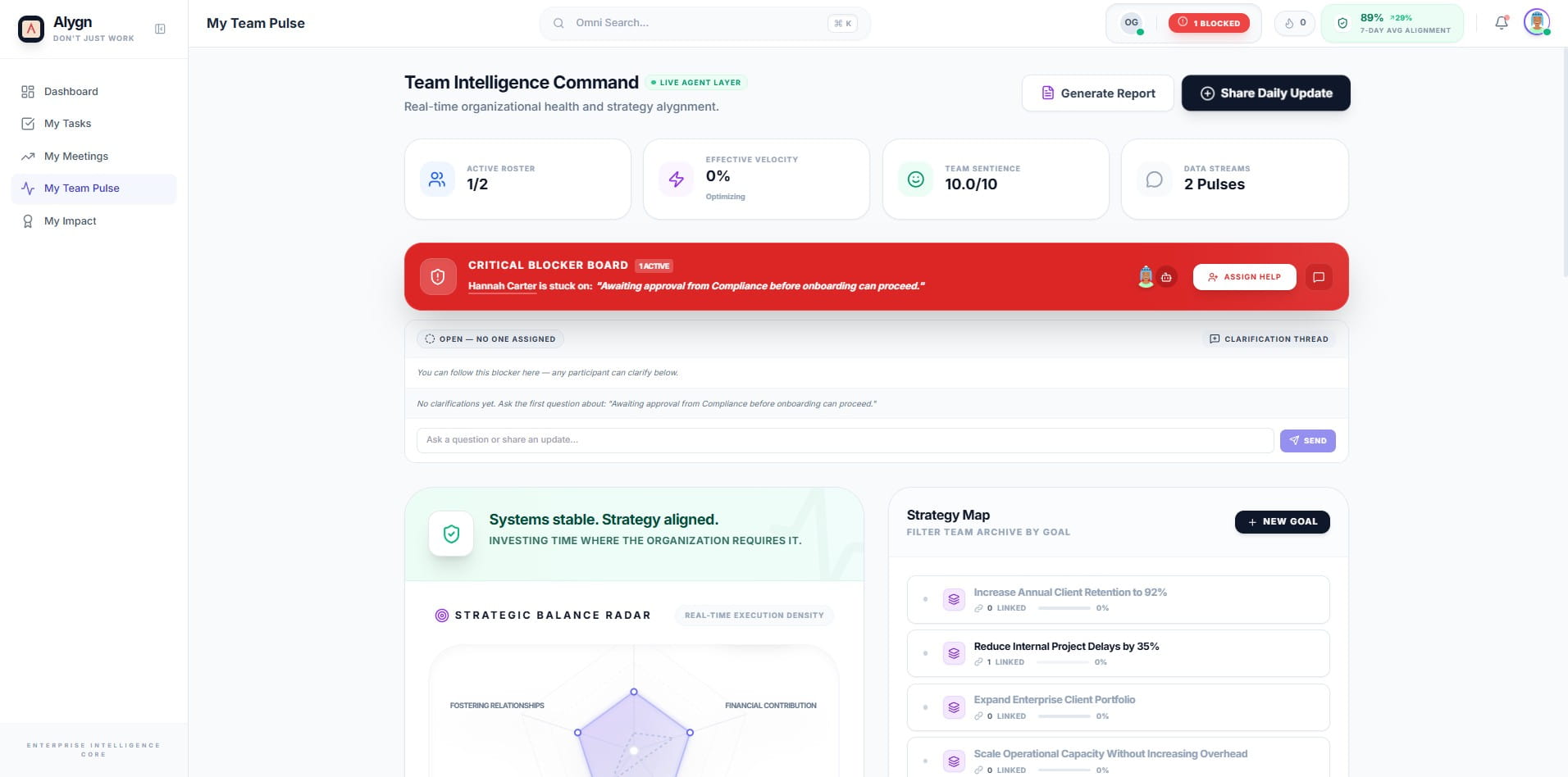
Open your browser and go to https://getalygn.com/app/pulse to access the My Team Pulse dashboard. This is where active blockers are surfaced so your team can take action on them in real time.
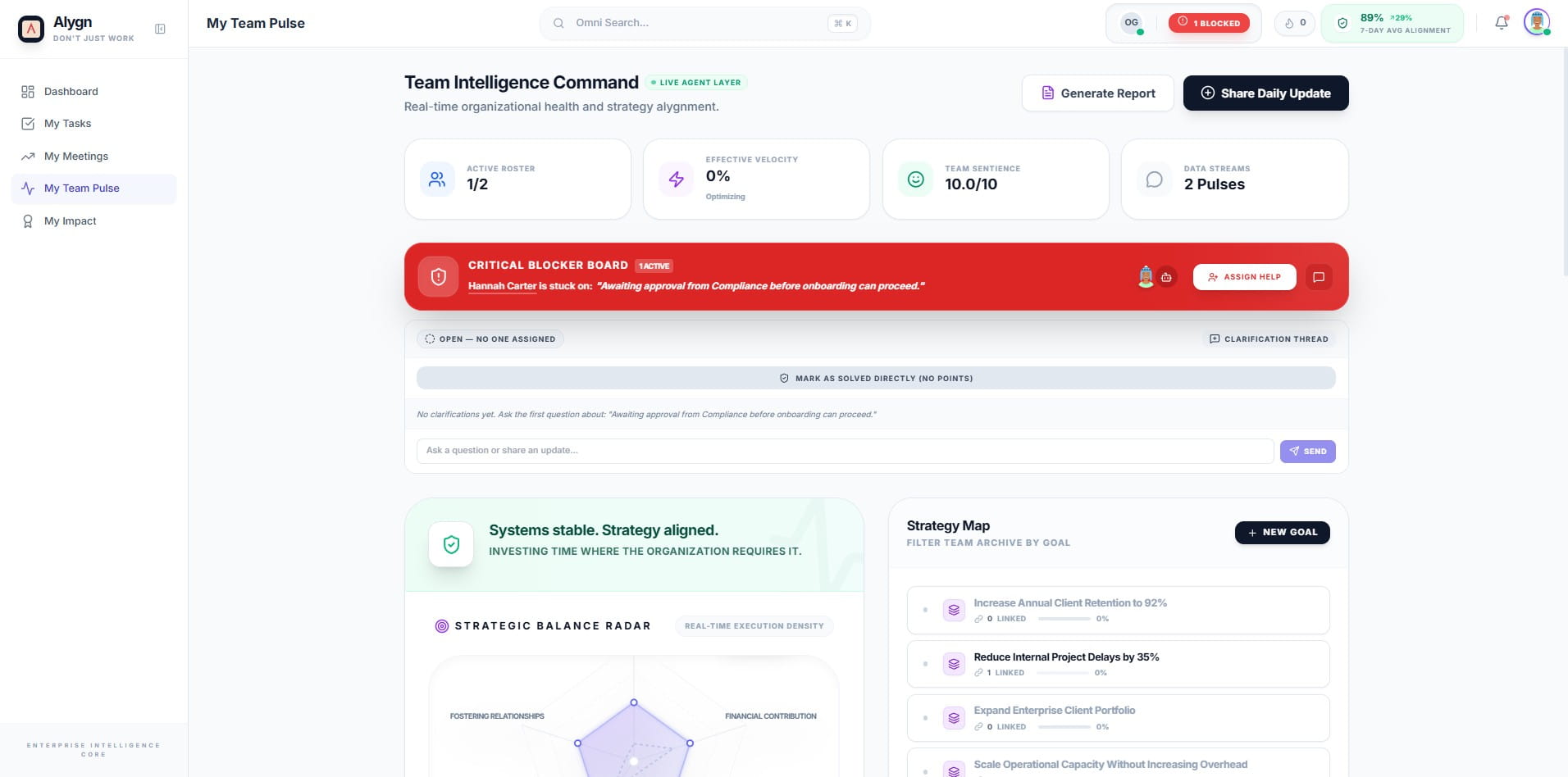
On the My Team Pulse dashboard, locate the Critical Blocker Board at the top of the page. When a team member is blocked, Alyn gives you two resolution paths. The first option is to assign a peer to help — this is useful when the blocker requires input or action from a specific colleague. The next two steps walk you through each path.
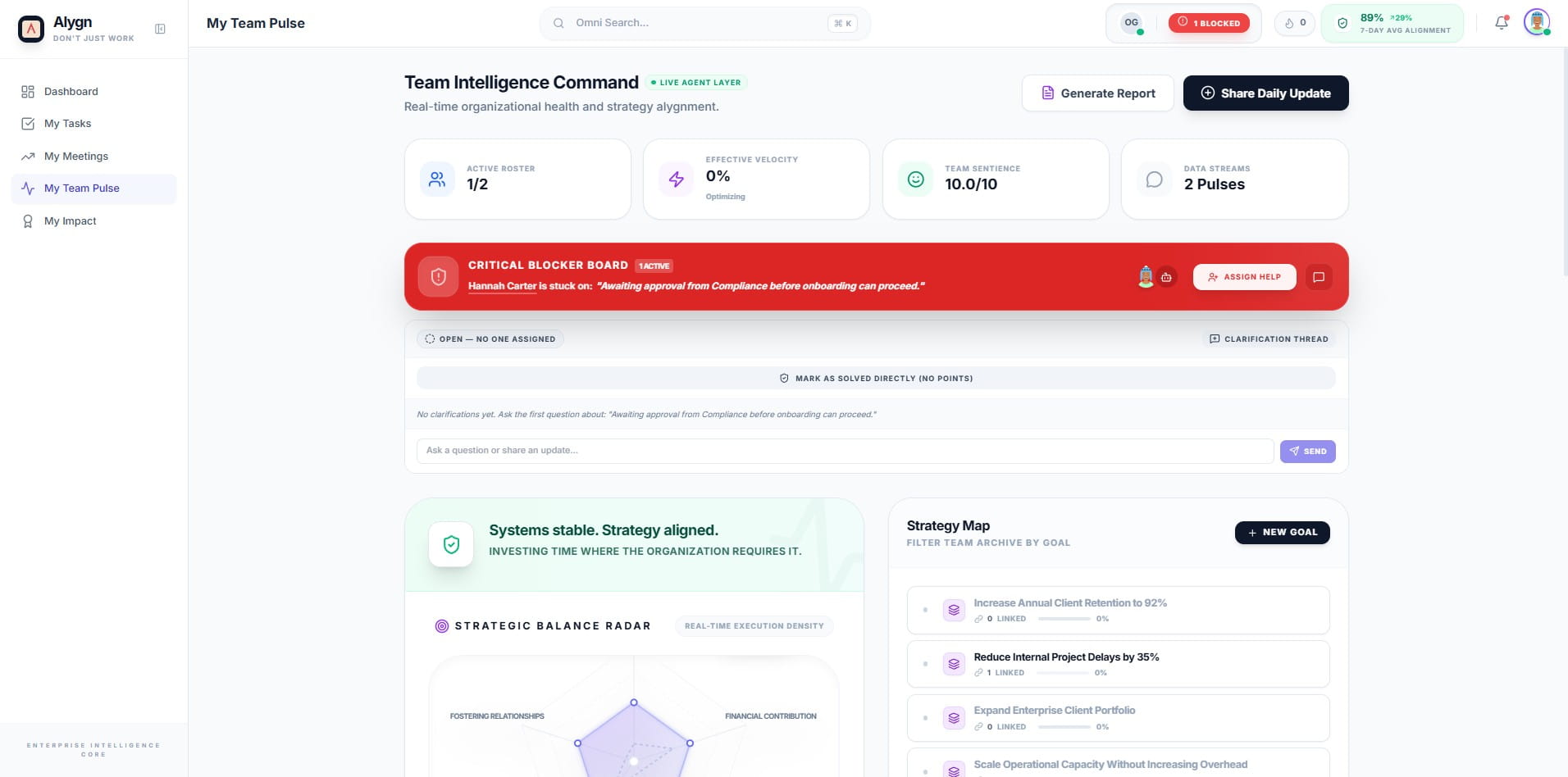
Click the Assign Help icon on the right side of the blocker card to open the Intelligent Handover panel. This panel uses a mission calibration protocol to identify the best-matched assignee for the blocker based on team fit. Review the suggested assignee under Assignee Selection and proceed to confirm the handover.
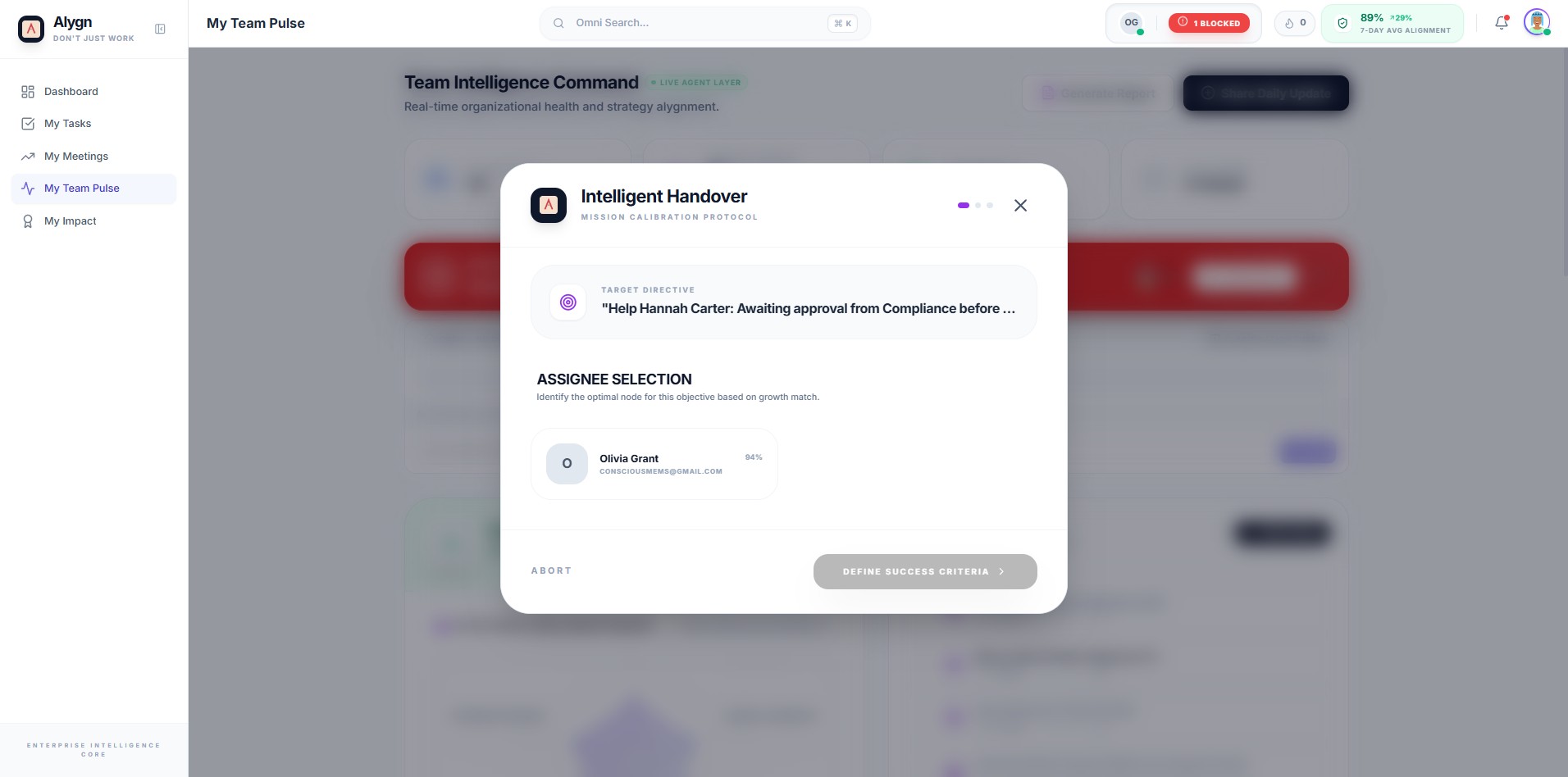
Alternatively, if the blocker has already been addressed and no peer assignment is needed, you can close it immediately. Locate the Mark as Solved Directly (No Points) option on the blocker card. This approach is best when the issue was self-resolved or the context no longer applies, allowing the team to move forward without waiting for an assignee.
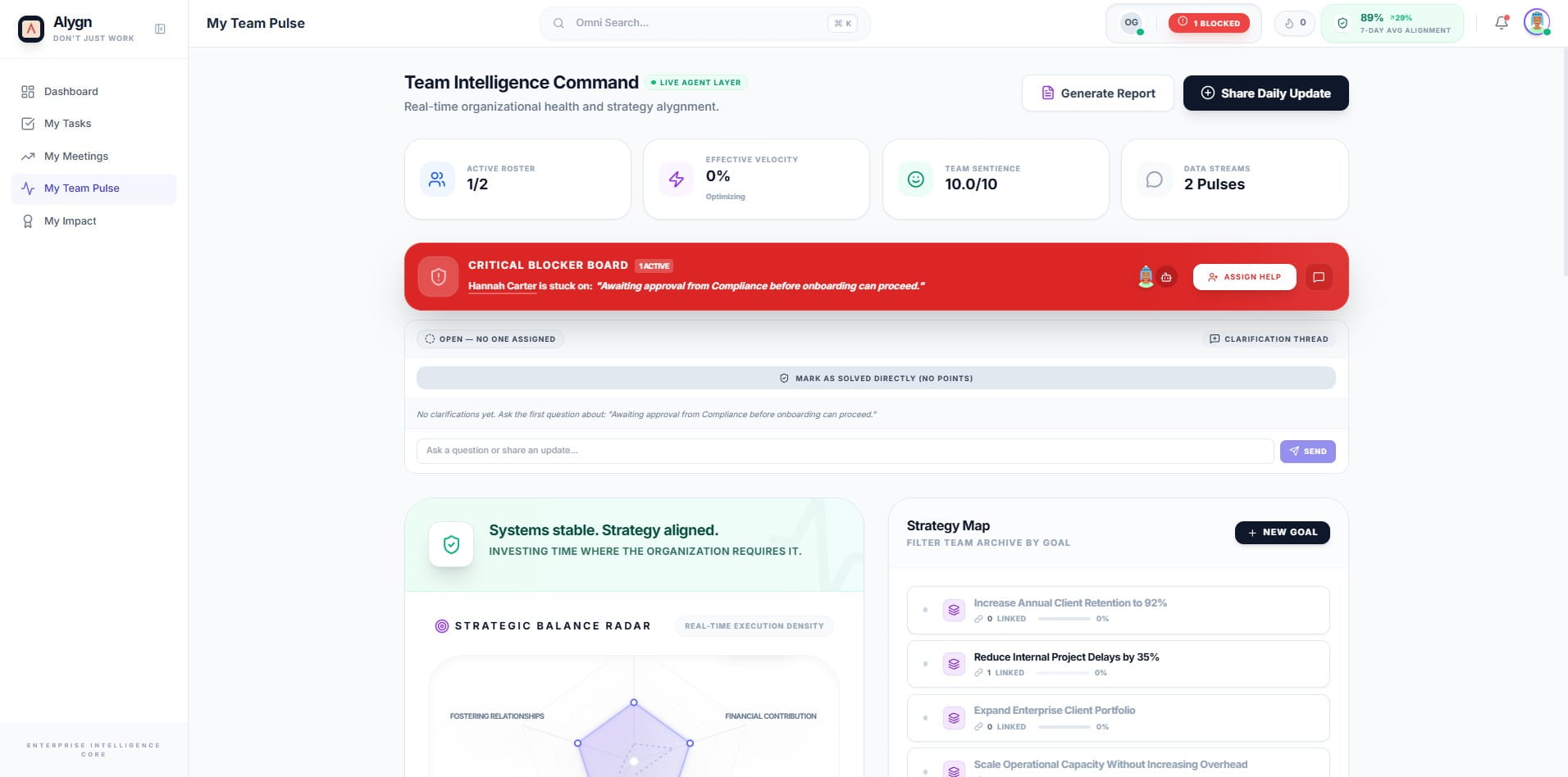
Click the Mark as Solved Directly (No Points) icon on the blocker card to resolve it immediately. This removes the blocker from the active queue and updates the board to reflect that the issue has been closed, keeping your team's status accurate and up to date.
The blocker has been successfully resolved. Depending on the path you chose, either a peer has been assigned via the Intelligent Handover workflow, or the blocker has been marked as directly solved. The Critical Blocker Board will update to reflect the new status, and your team can continue working without interruption.