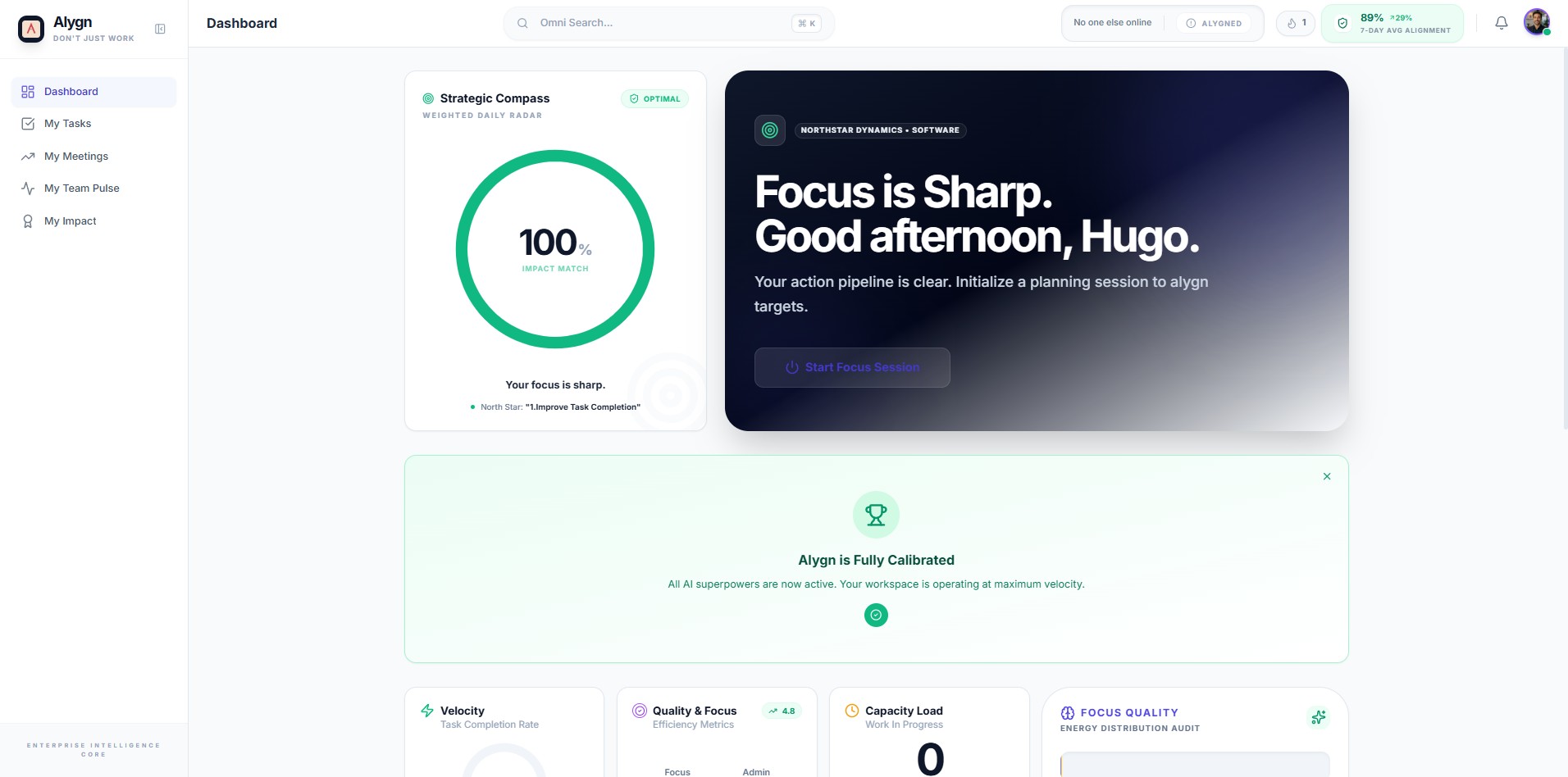
How to Switch Between Dark Mode and Light Mode in Alygn
Open your browser and go to https://getalygn.com/app#team to access the Alygn application. This brings you to the Team section of your workspace, where you can access your account settings and display preferences.
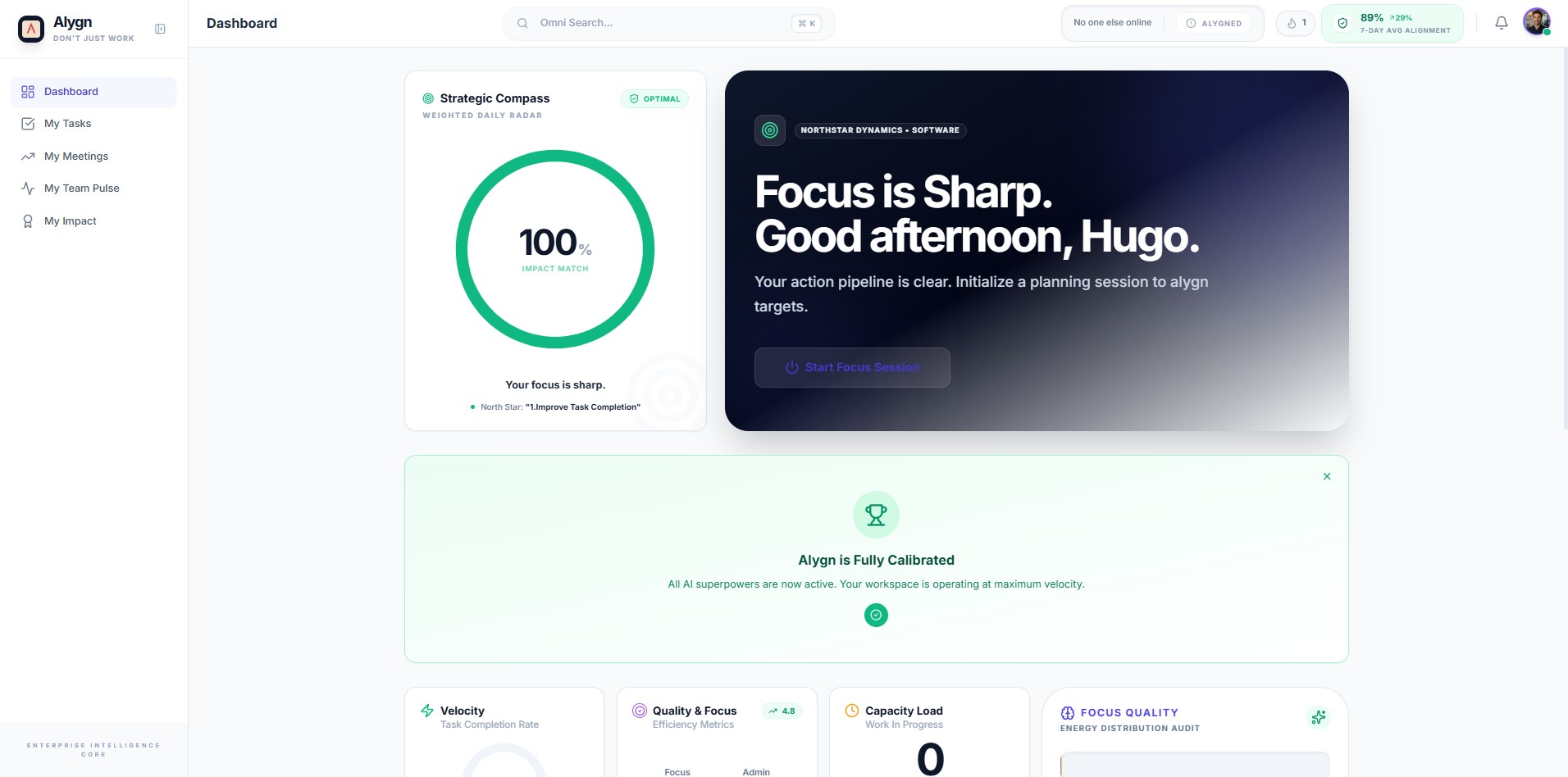
In the top-right corner of the screen, click your profile avatar (the circular image representing your account). This opens a dropdown menu that provides access to your personal preferences and account options.
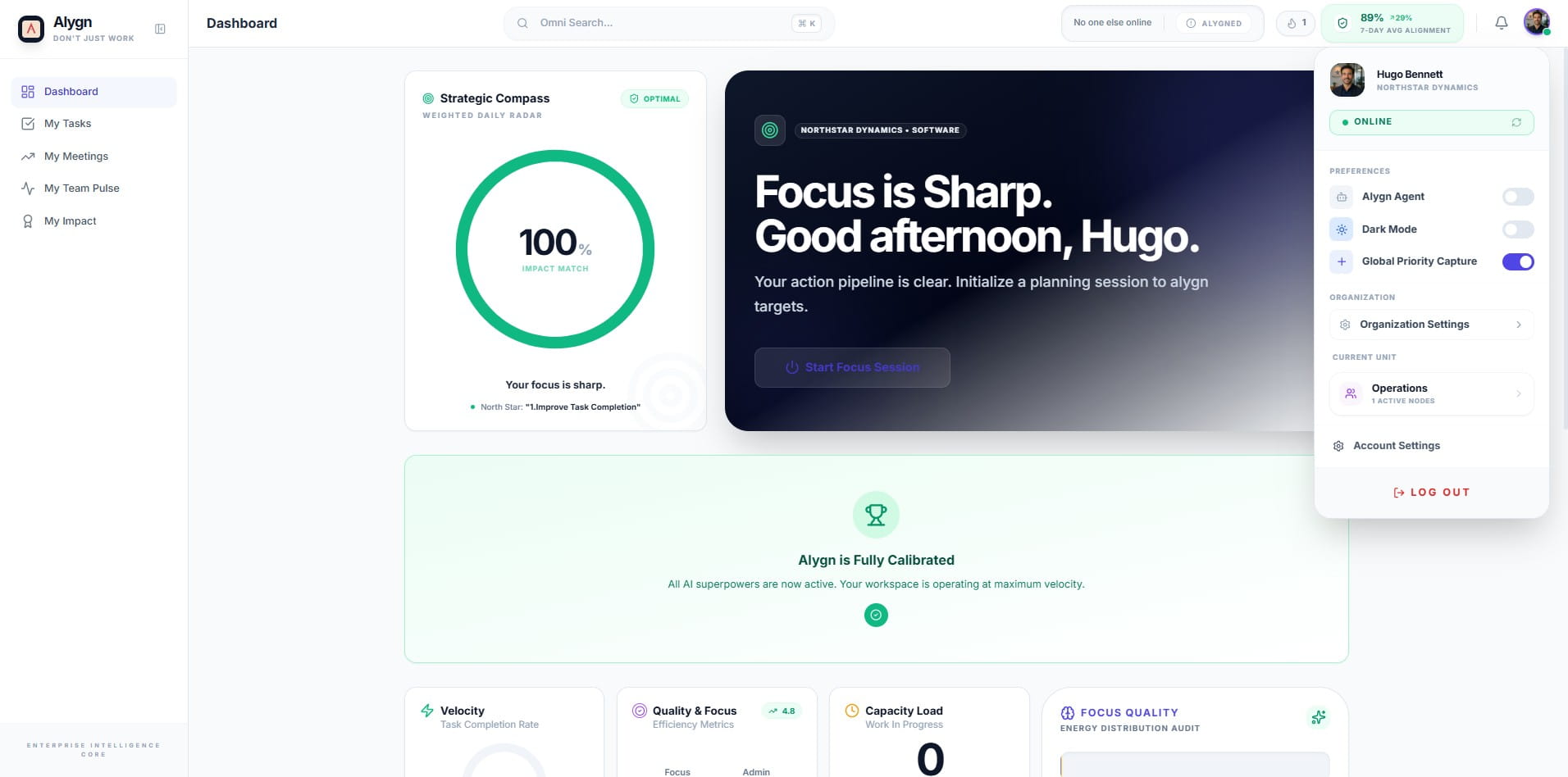
In the dropdown menu that appears, locate the Dark Mode option listed under the Preferences section and click on it. This initiates the display mode toggle, allowing you to switch between a dark and light interface theme.
Click the Dark Mode toggle to confirm and apply your preferred display setting. Enabling this option switches the interface to a dark color scheme, which reduces eye strain in low-light environments. To revert to the standard view, click the same toggle to turn Dark Mode off and restore the Light Mode interface.
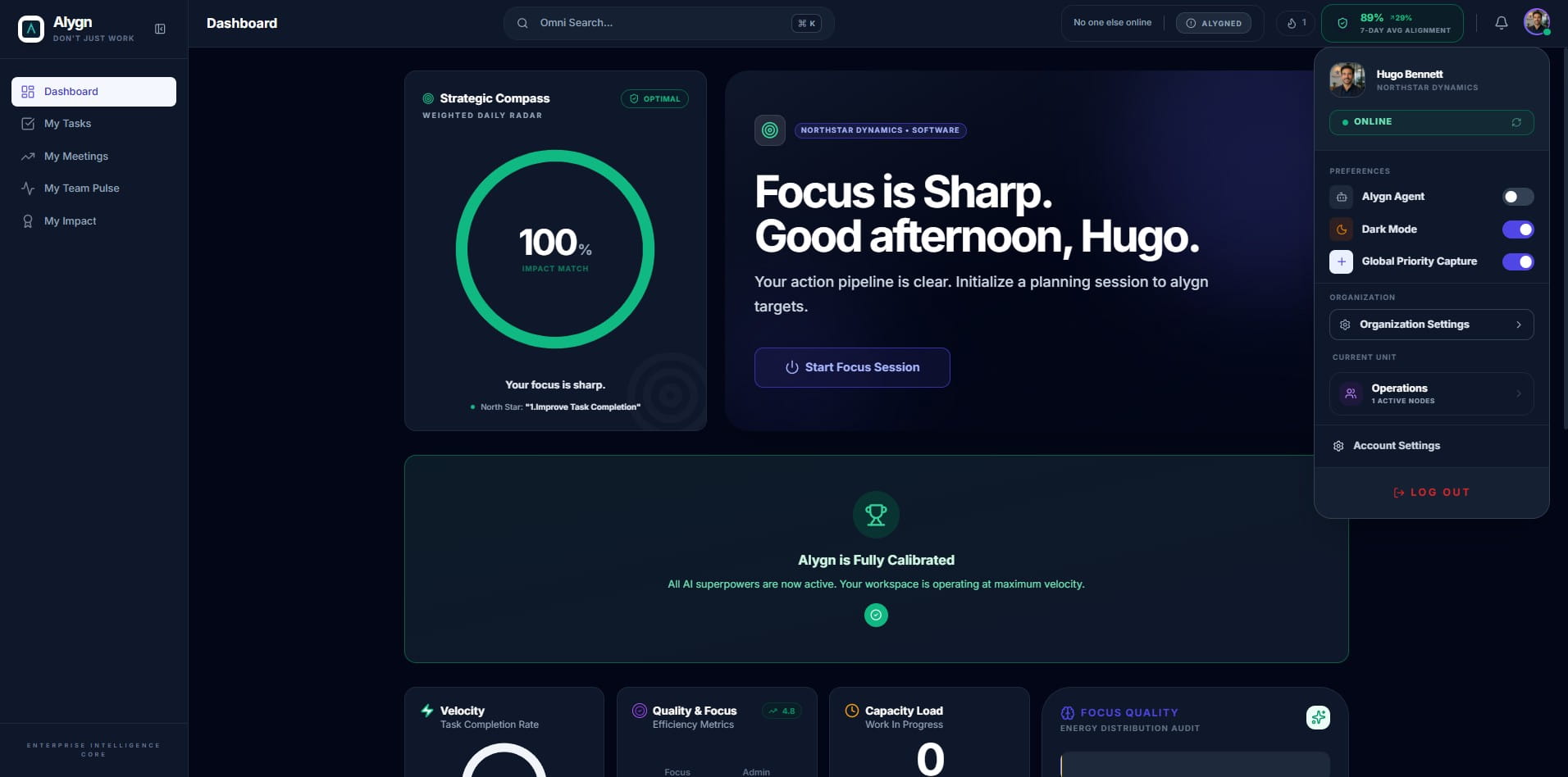
Your display preference has been successfully updated. The Alygn interface will now reflect your chosen theme — either Dark Mode or Light Mode — across your workspace. The change takes effect immediately and will persist for your account each time you log in.