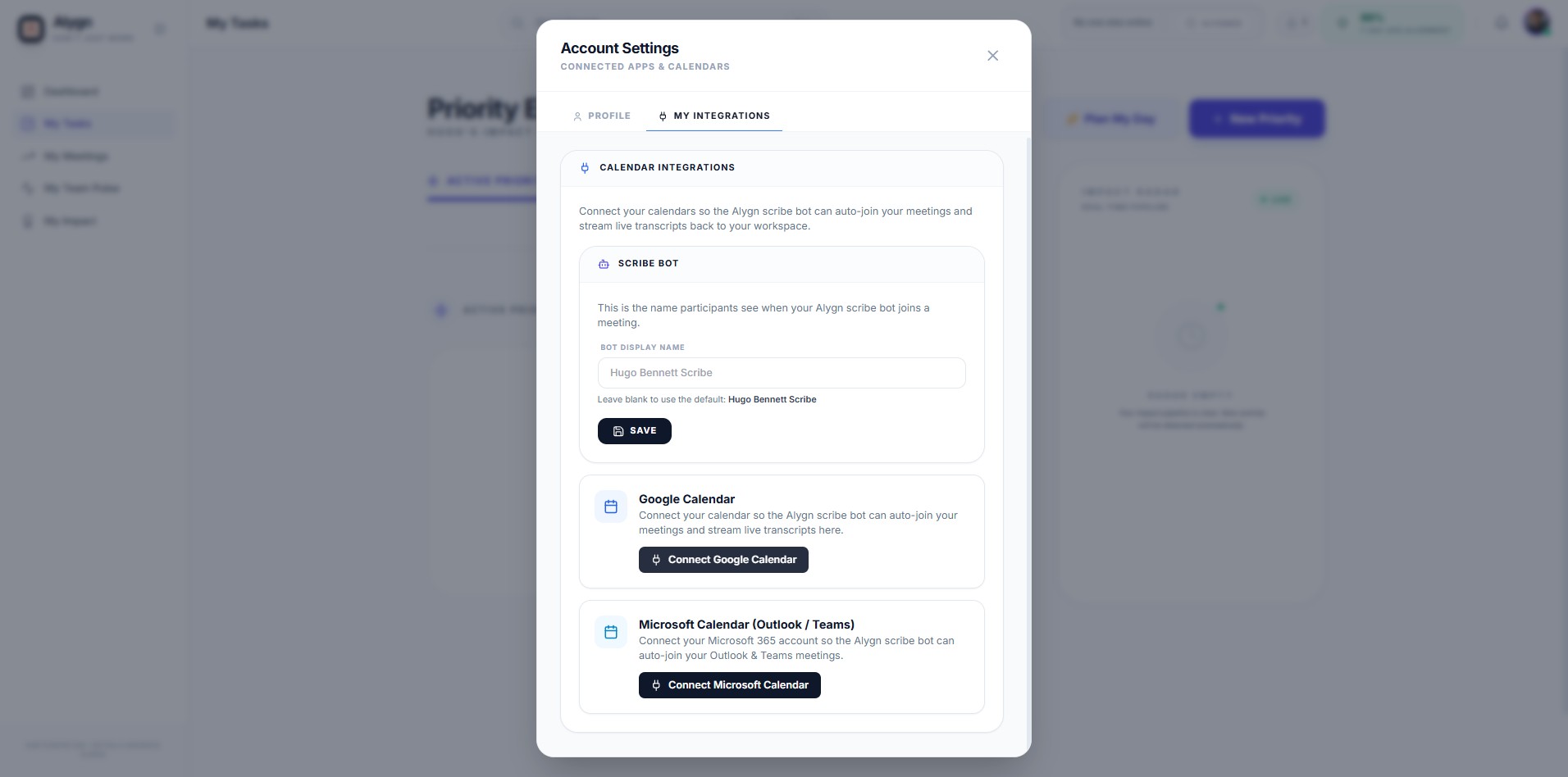
How to Connect Your Calendar to Enable Automatic Meeting Transcription
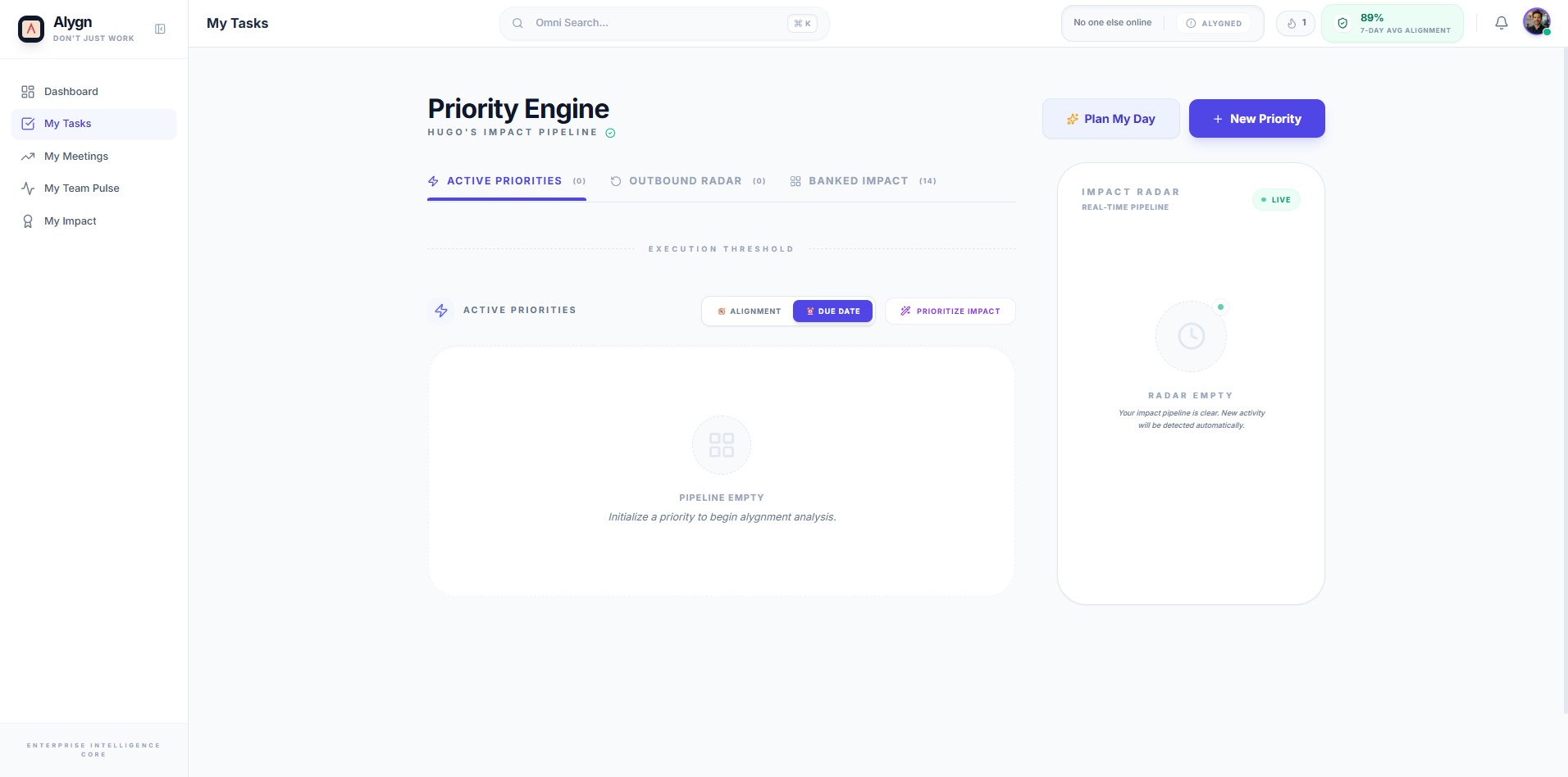
Open your browser and navigate to https://getalygn.com/app/tasks#personal to access the Alygn application. This is the starting point for reaching your account settings, where you will connect your calendar.
Click your profile avatar in the top-right corner of the screen to open the user menu. This will display a dropdown with account options, including access to your Account Settings.
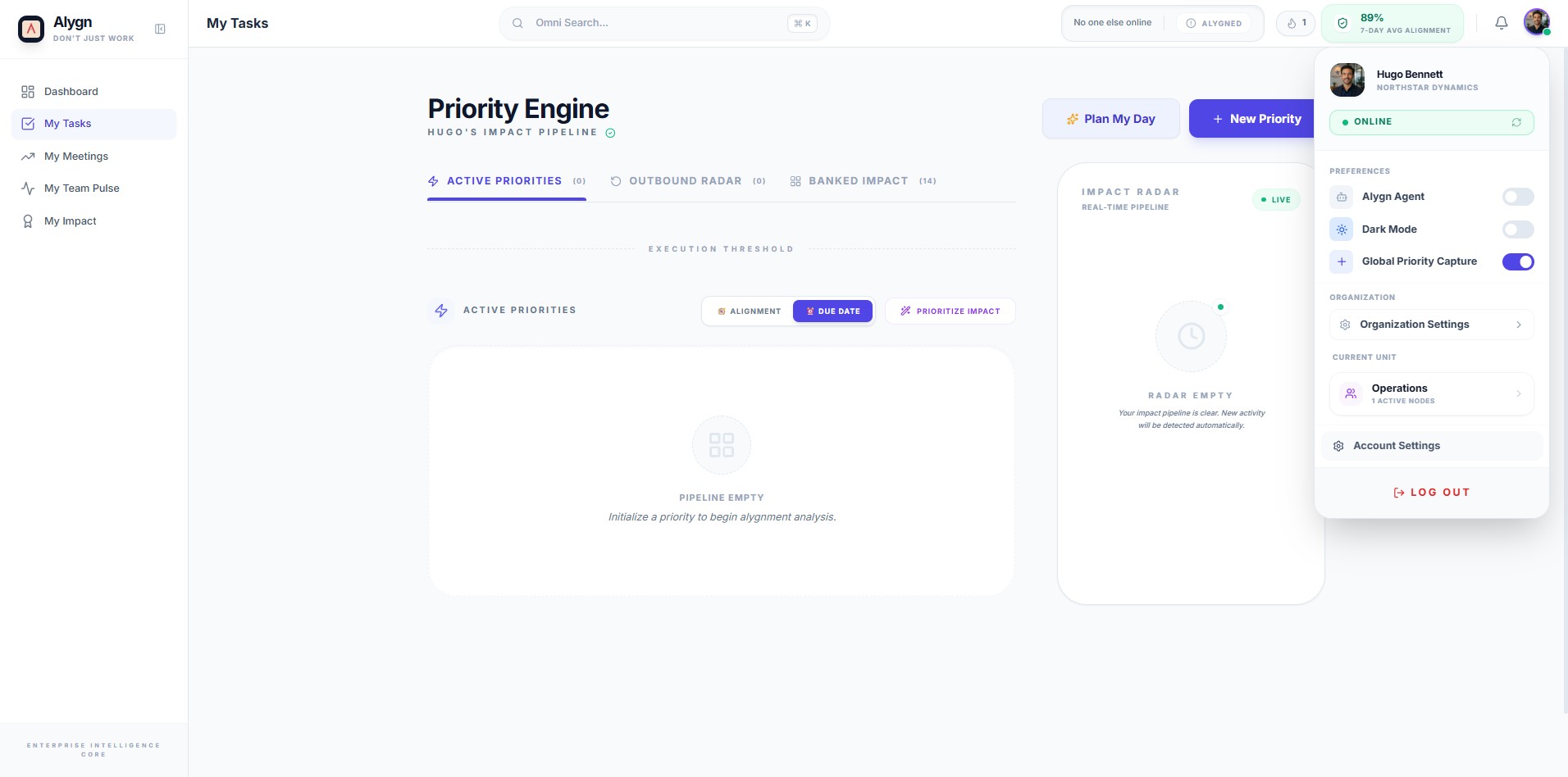
In the dropdown menu that appears, click Account Settings. This will open your personal account settings panel, where you can manage your profile, integrations, and connected applications.
In the Account Settings panel, click the My Integrations tab at the top. This switches the view from your profile details to the integrations section, where you can connect your calendar and other third-party apps.
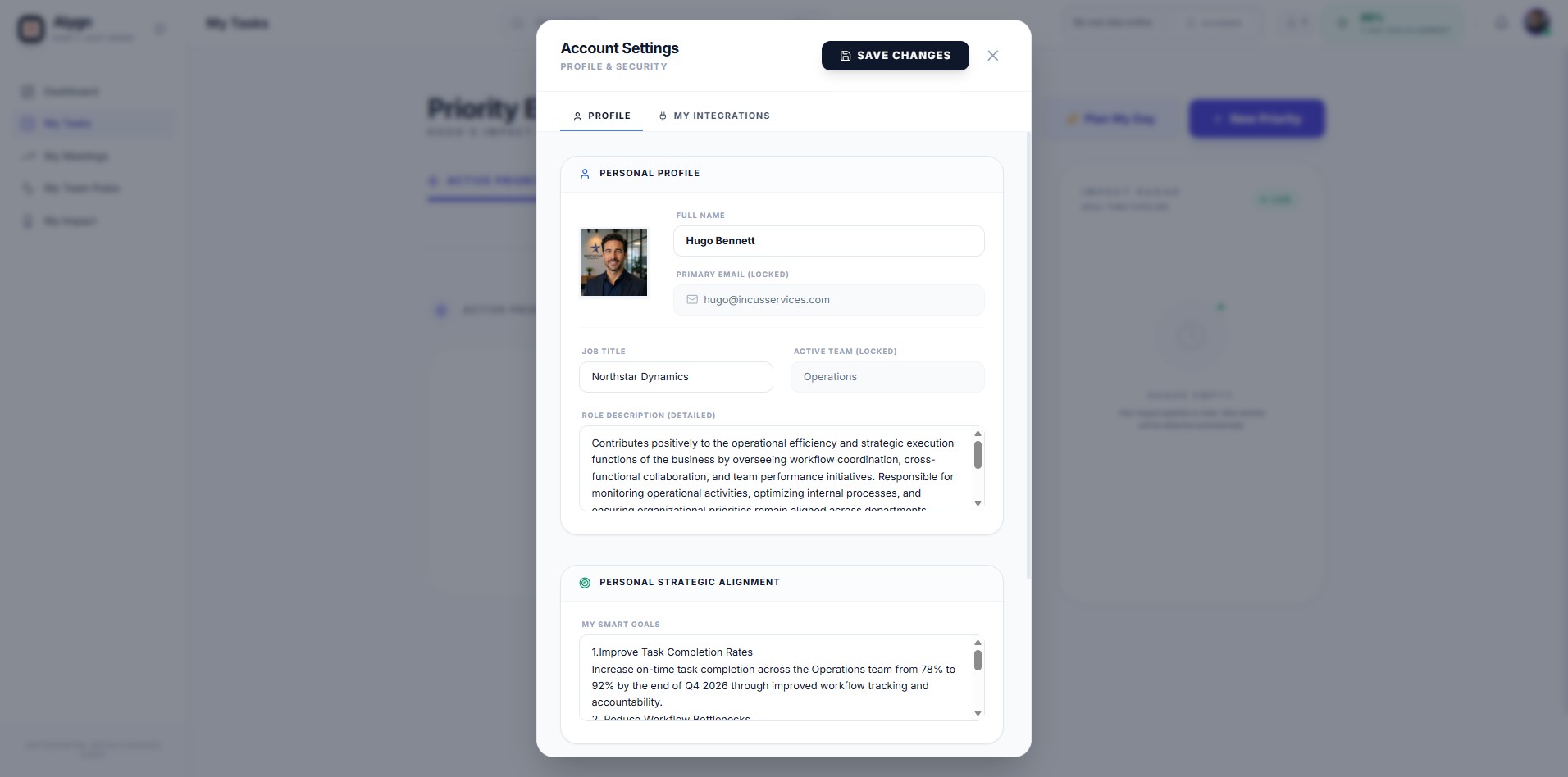
Under the Calendar Integrations section, click Connect Google Calendar or Connect Microsoft Calendar, depending on which calendar service you use. This authorizes Alygn to access your calendar so the Scribe bot can automatically join your meetings and deliver live transcripts to your workspace.