How to Set Up Integrations
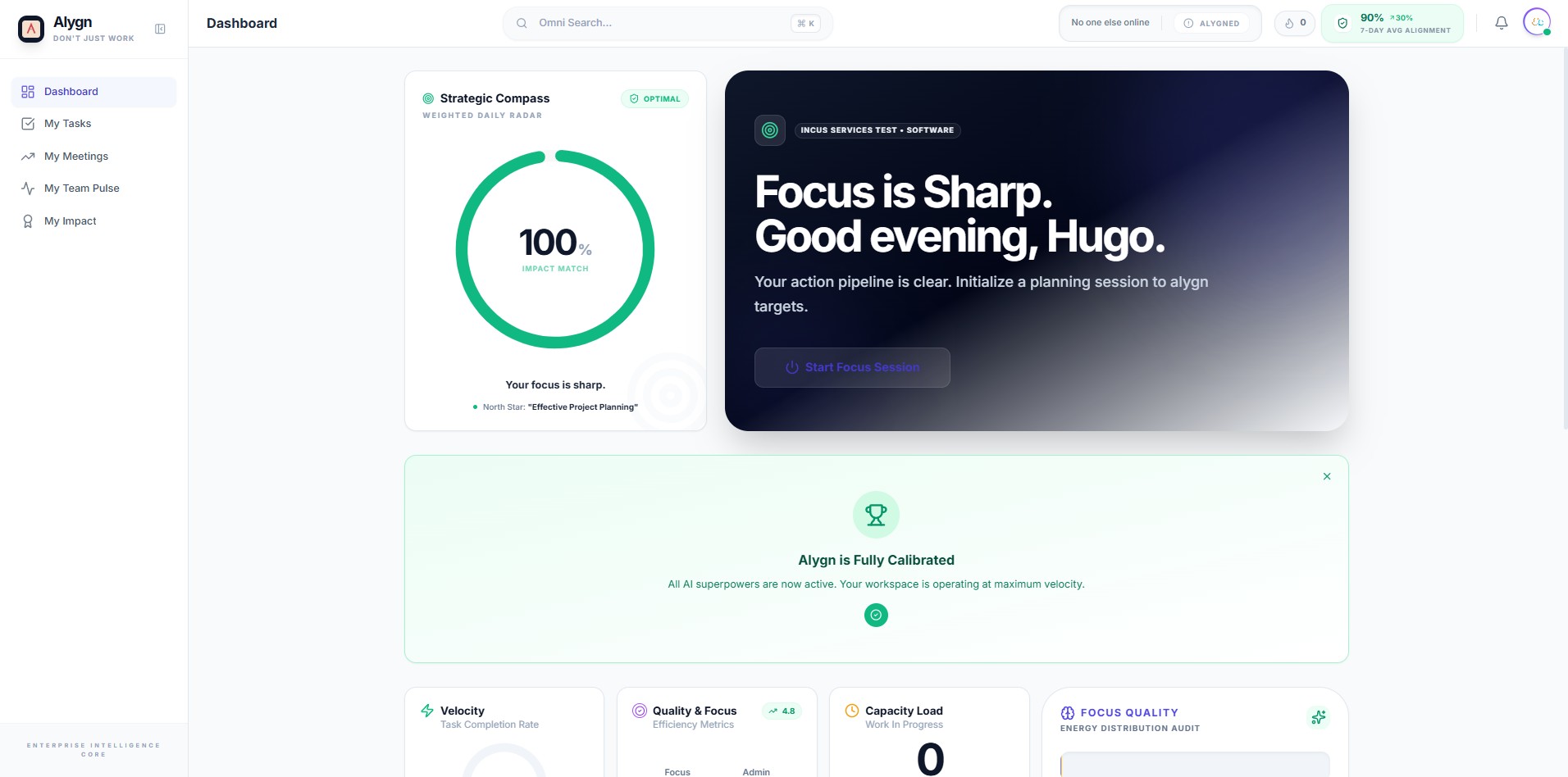
Click this image Start from your Alygn Dashboard. This is your main workspace where you can see your Strategic Compass, tasks, meetings, and performance metrics. To begin setting up integrations, you'll need to navigate to your Account Settings.
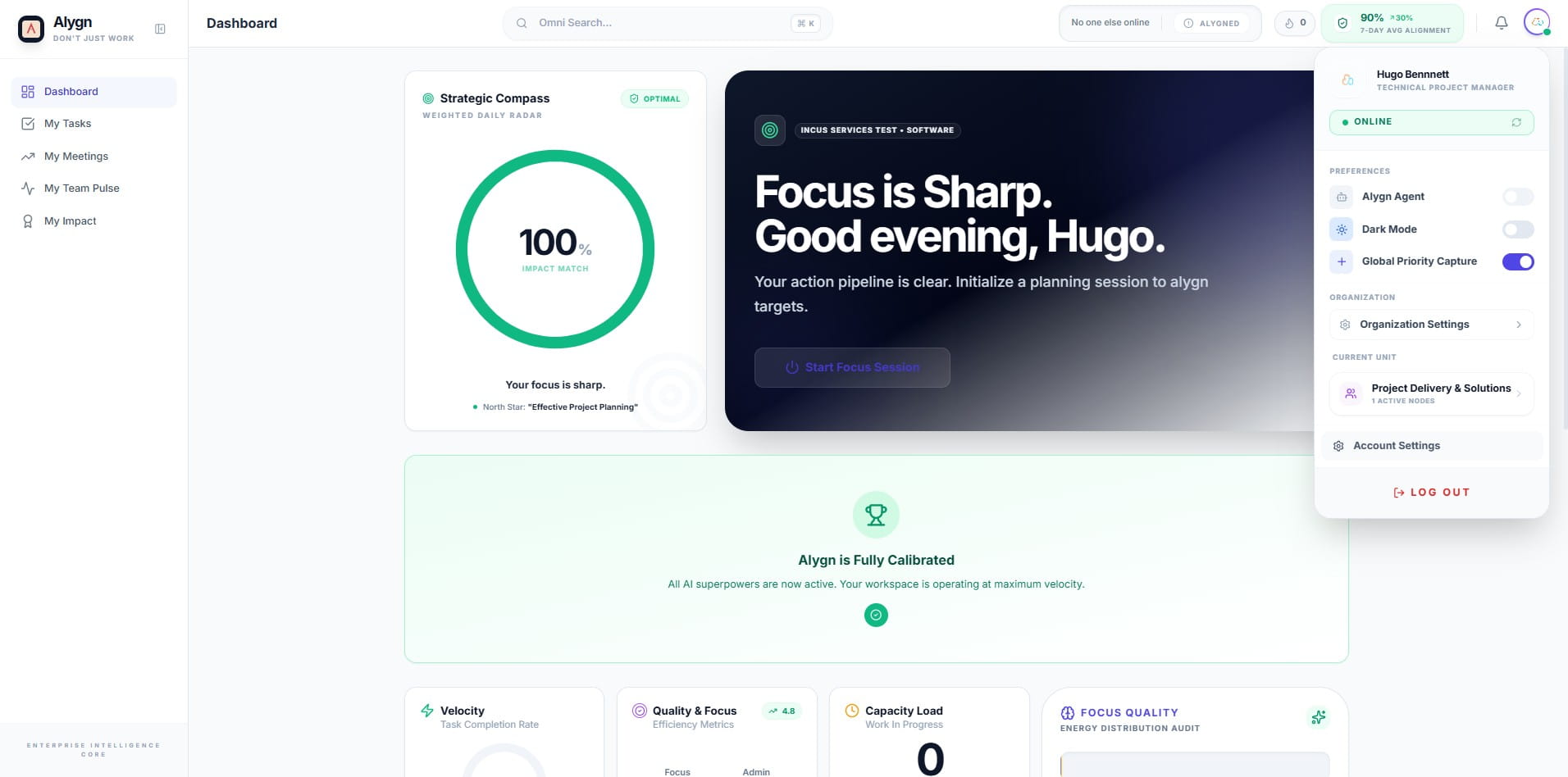
Click this icon Click on your profile icon in the top-right corner of the screen to open the user menu. You will see options including Preferences, Organization Settings, and Account Settings.
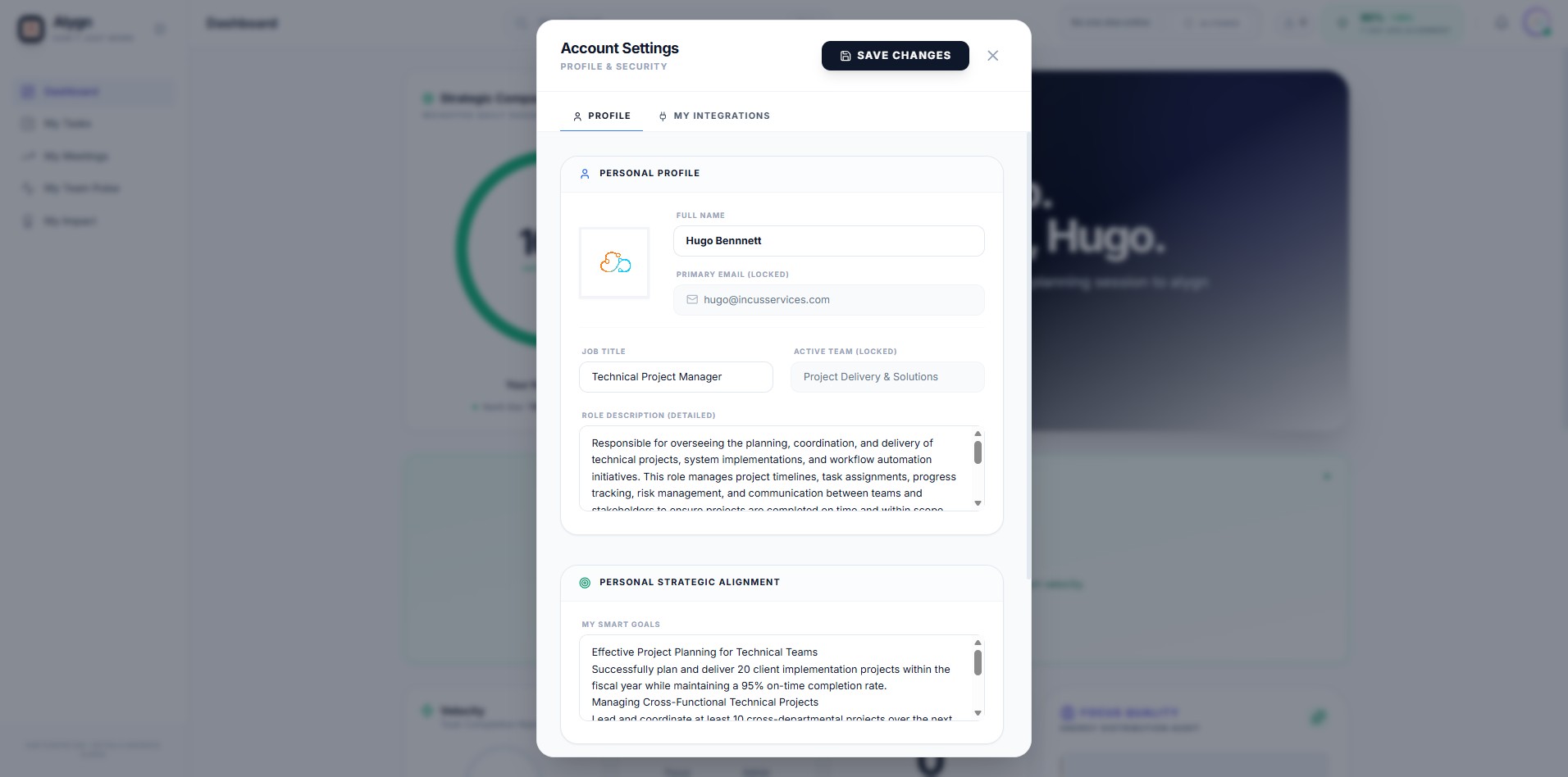
Click this icon The Account Settings modal is now open. Click on the "MY INTEGRATIONS" tab at the top to access all integration options. This is where you can connect your calendars and configure the Alygn Scribe Bot.
Click here You are now on the My Integrations page. In the Scribe Bot section, click on the bot display name field to customize the name that meeting participants will see when the Alygn Scribe Bot joins a call.
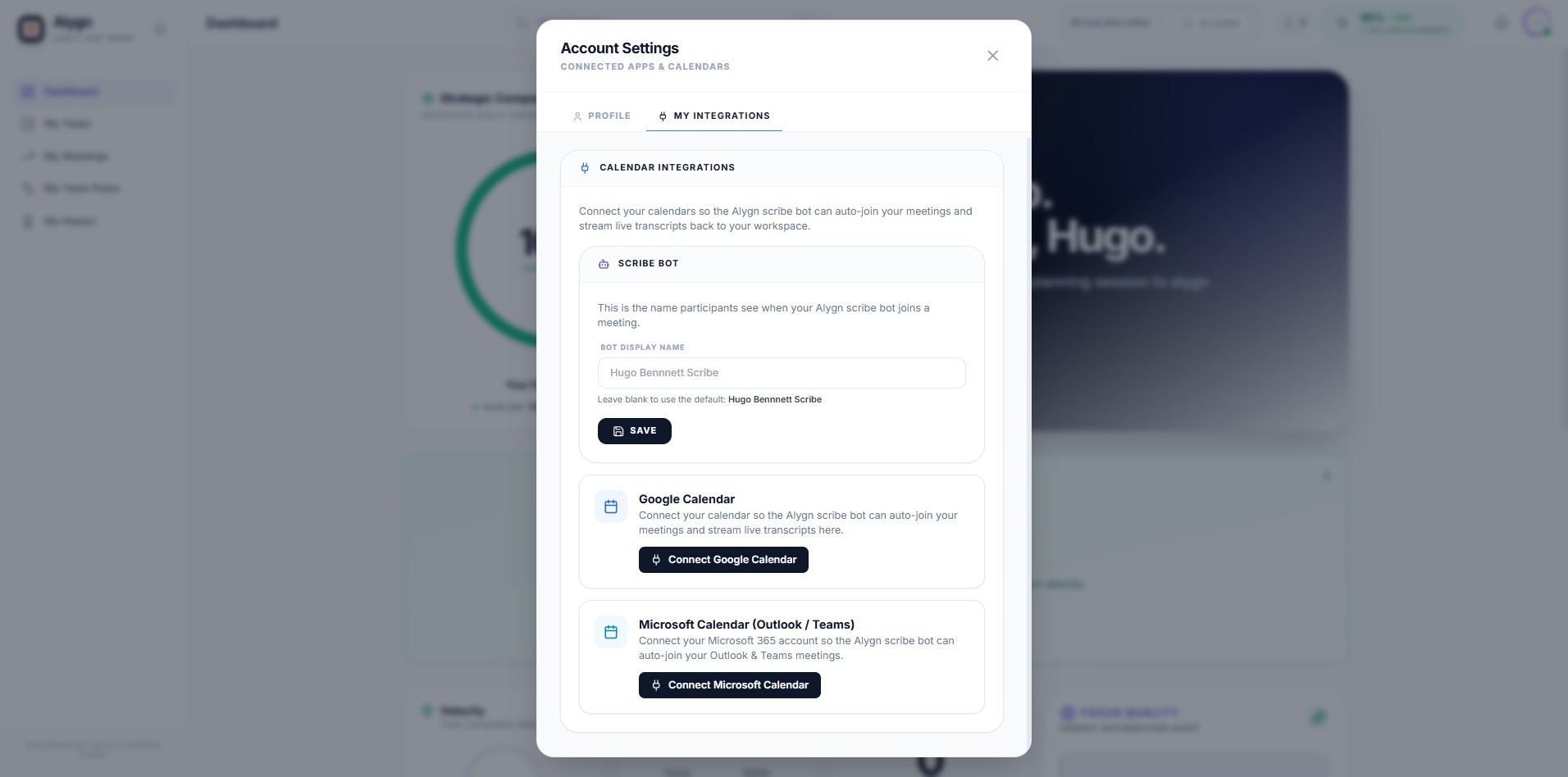
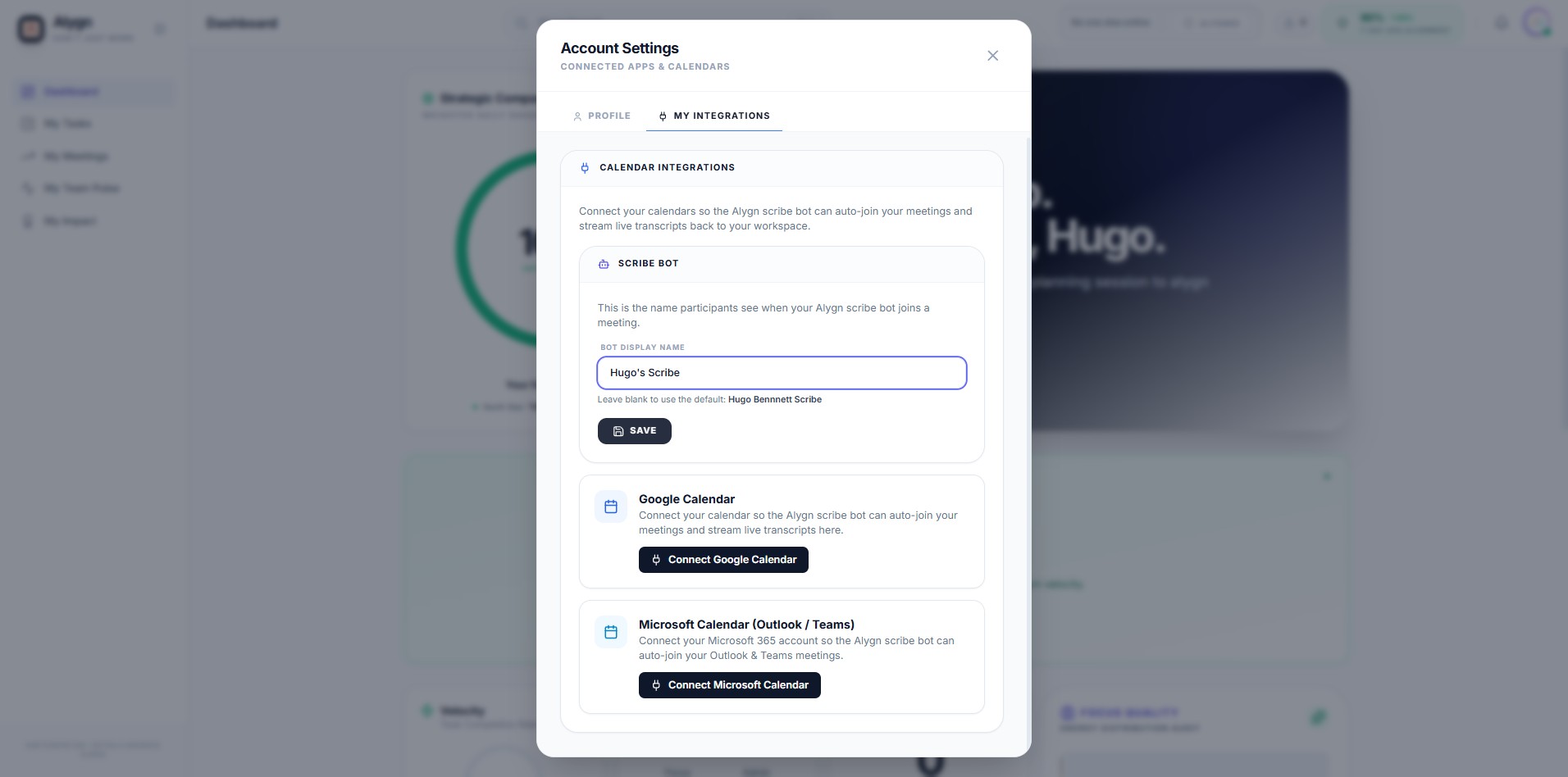
Click this icon Type a custom display name for your Alygn Scribe Bot in the "Bot Display Name" field. This is the name other meeting participants will see when the bot joins your calls. Once you've entered your preferred name, click the "SAVE" button to confirm the changes.
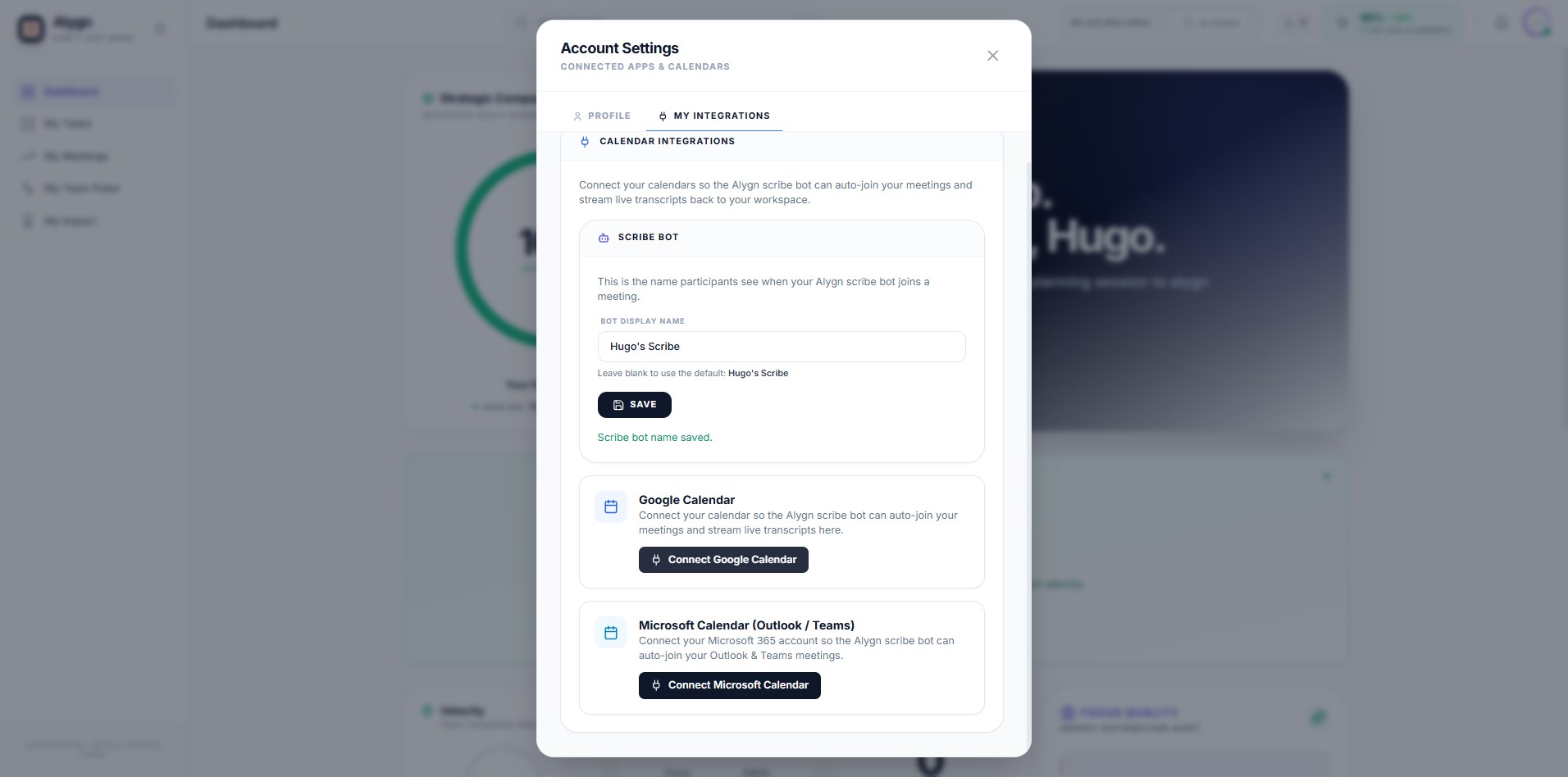
Click this icon Your Scribe Bot name has been saved. Now, to connect your Google Calendar, click the "Connect Google Calendar" button. This allows the Alygn Scribe Bot to automatically join your scheduled Google Calendar meetings and stream live transcripts back to your workspace.
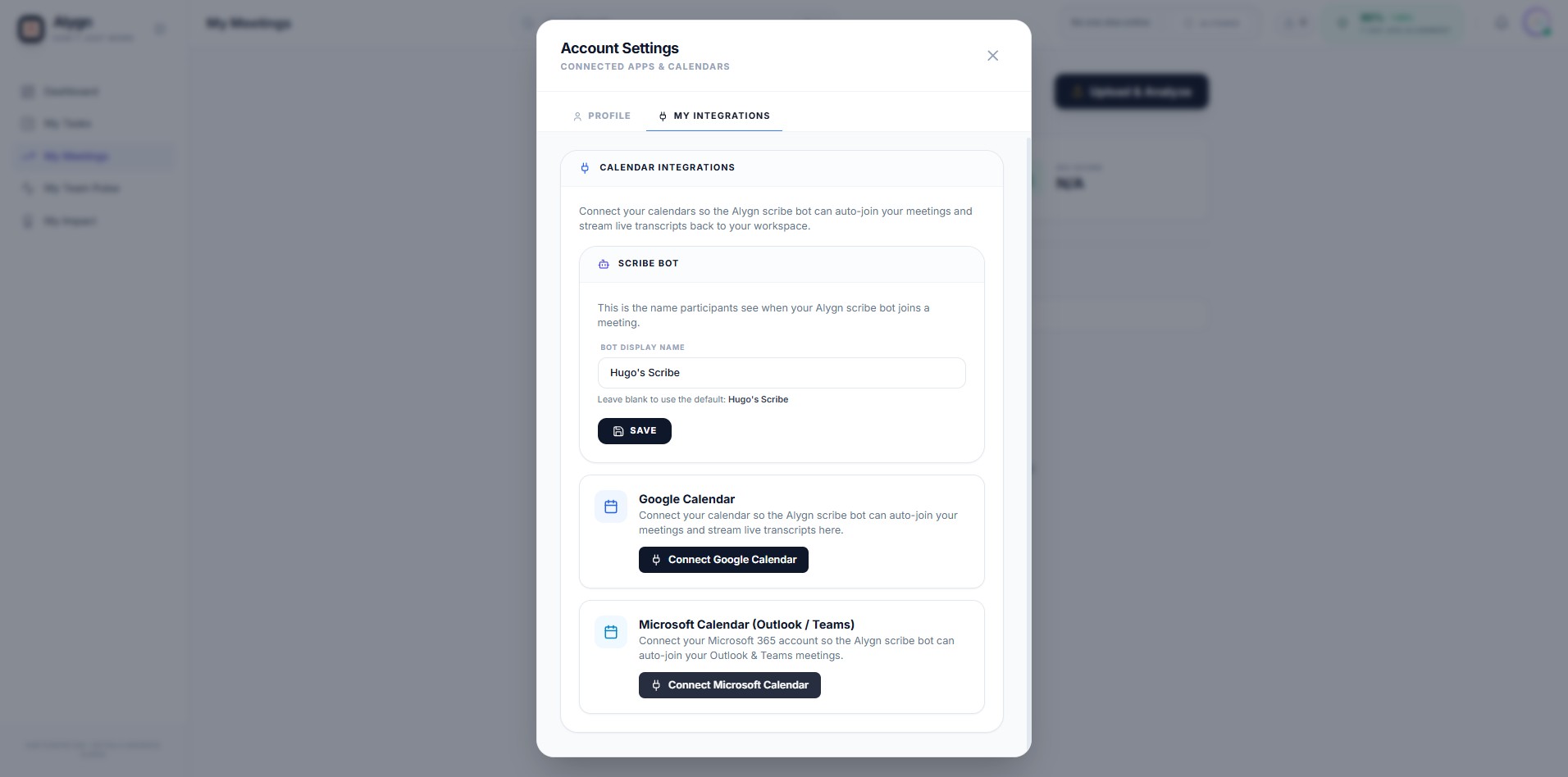
Click this icon If you use Microsoft 365, Outlook, or Teams for your meetings, click the "Connect Microsoft Calendar" button. This connects your Microsoft account to the Alygn Scribe Bot, enabling it to automatically join and transcribe your Outlook and Teams meetings.
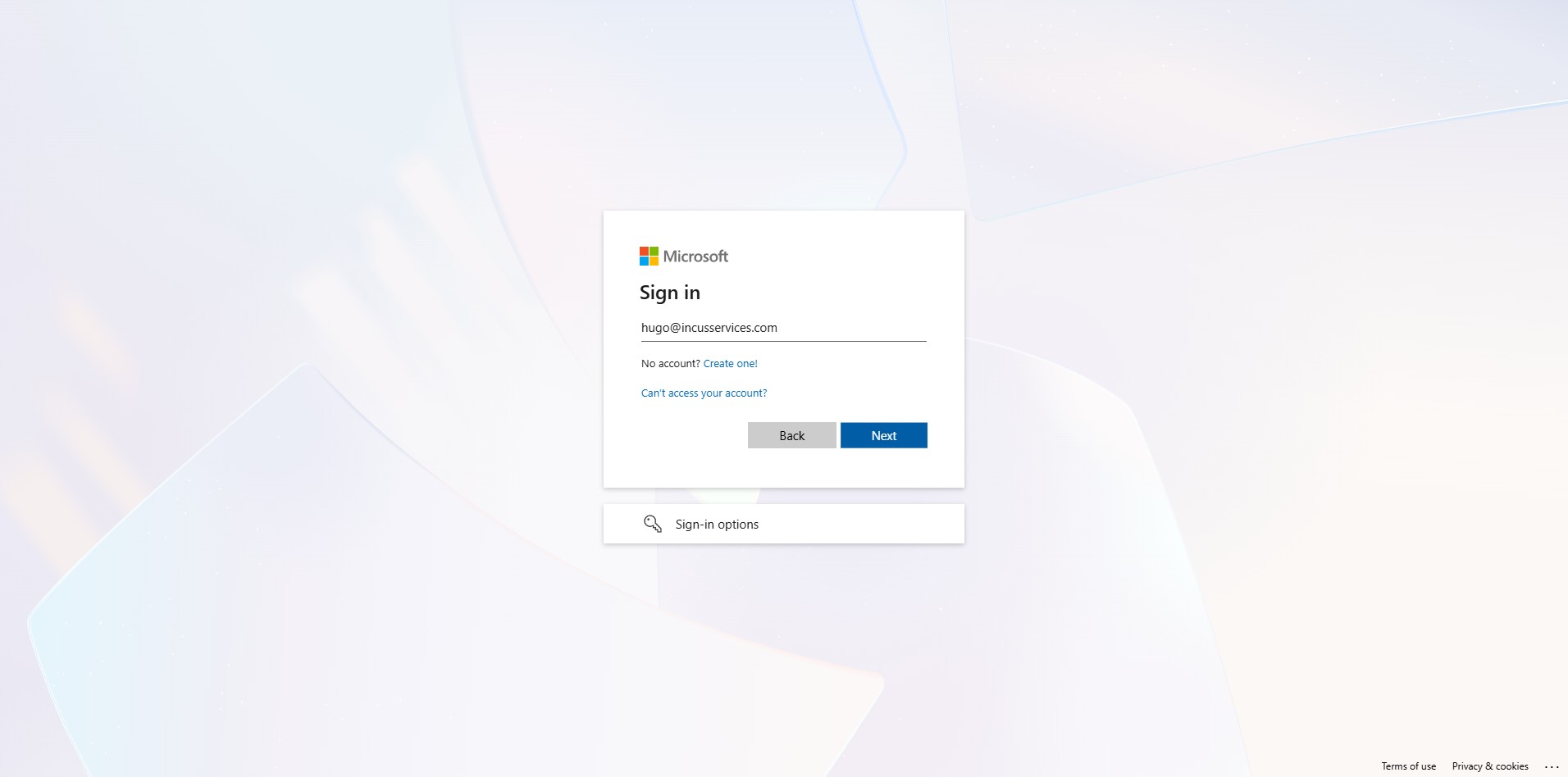
Click here A Microsoft Sign In window will open. Click on the email, phone, or Skype field and enter your Microsoft account email address. Then click "Next" to proceed with the authentication flow and grant Alygn access to your calendar.
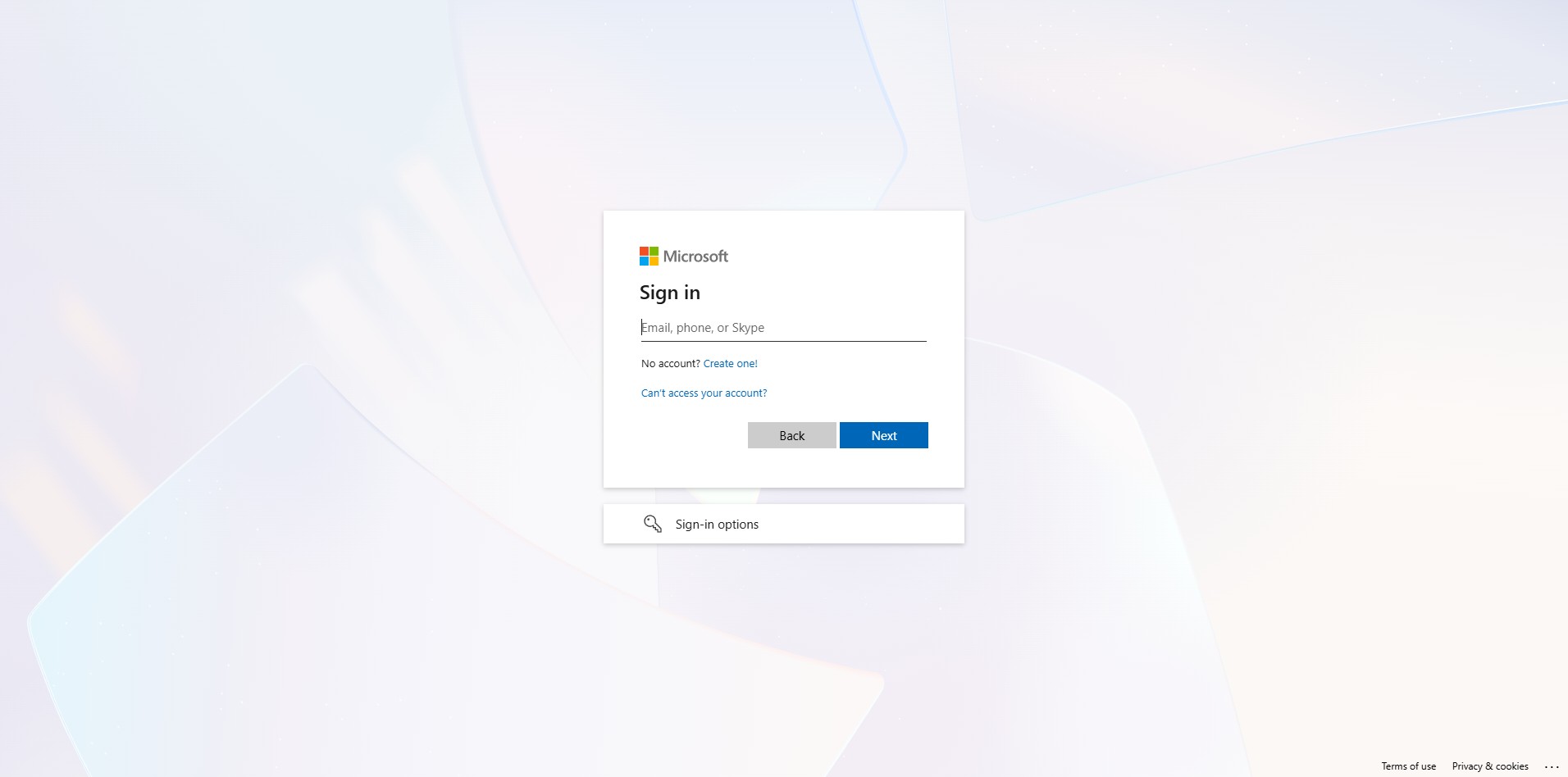
Click here After entering your Microsoft email address, click the "Next" button to continue. You will be prompted to enter your password and may need to complete a multi-factor authentication step. Once signed in, Microsoft will ask you to grant Alygn permission to access your calendar.
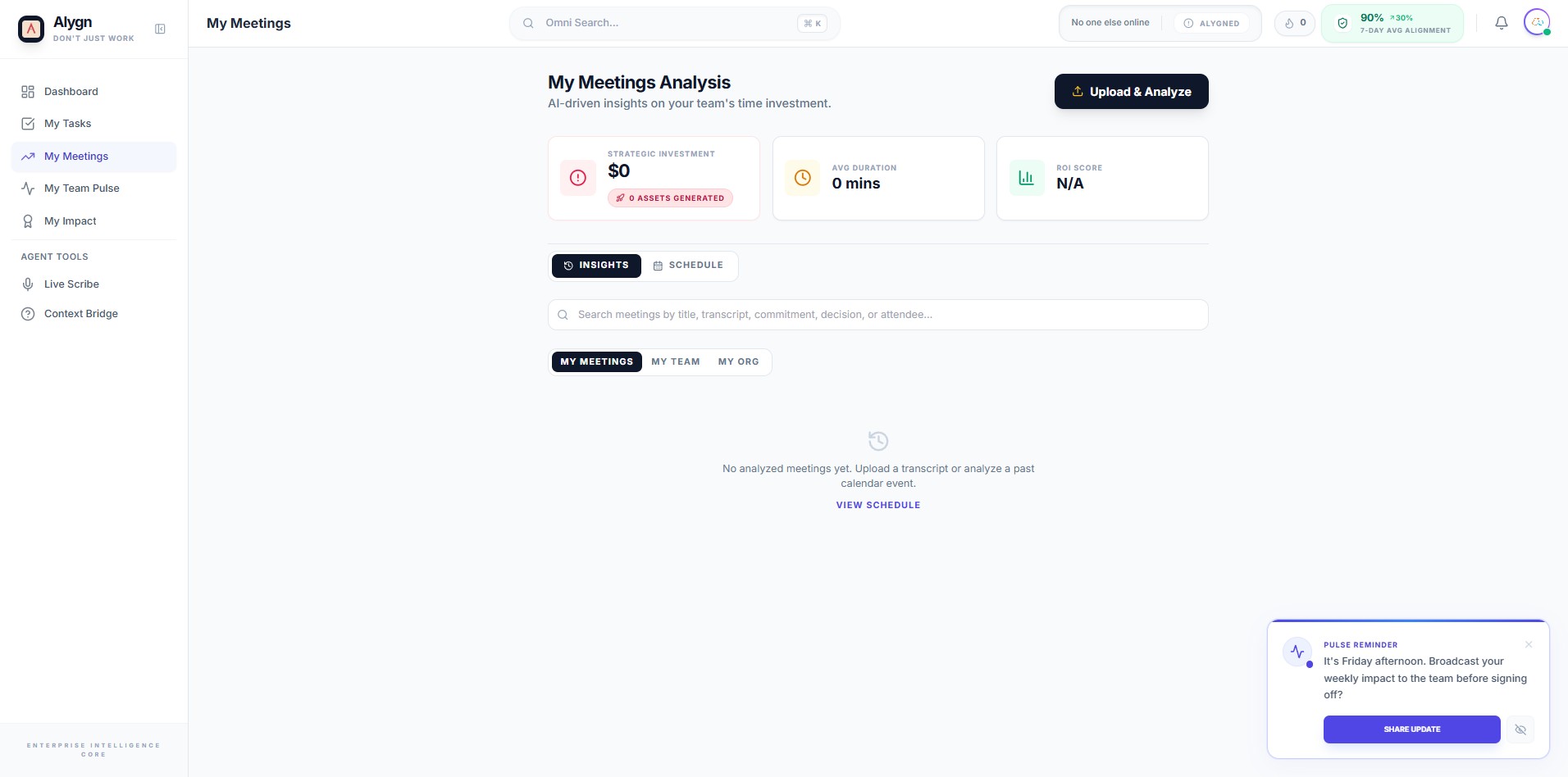
Done 🚀 Your integrations are now fully set up! You can see the "My Meetings" page with AI-driven analysis of your team's time investment. The Alygn Scribe Bot will now automatically join your calendar meetings to capture live transcripts. You can access your meeting insights, schedule, and AI-powered tools like Live Scribe and Context Bridge from the sidebar.