How to Accept and Review an Assignment
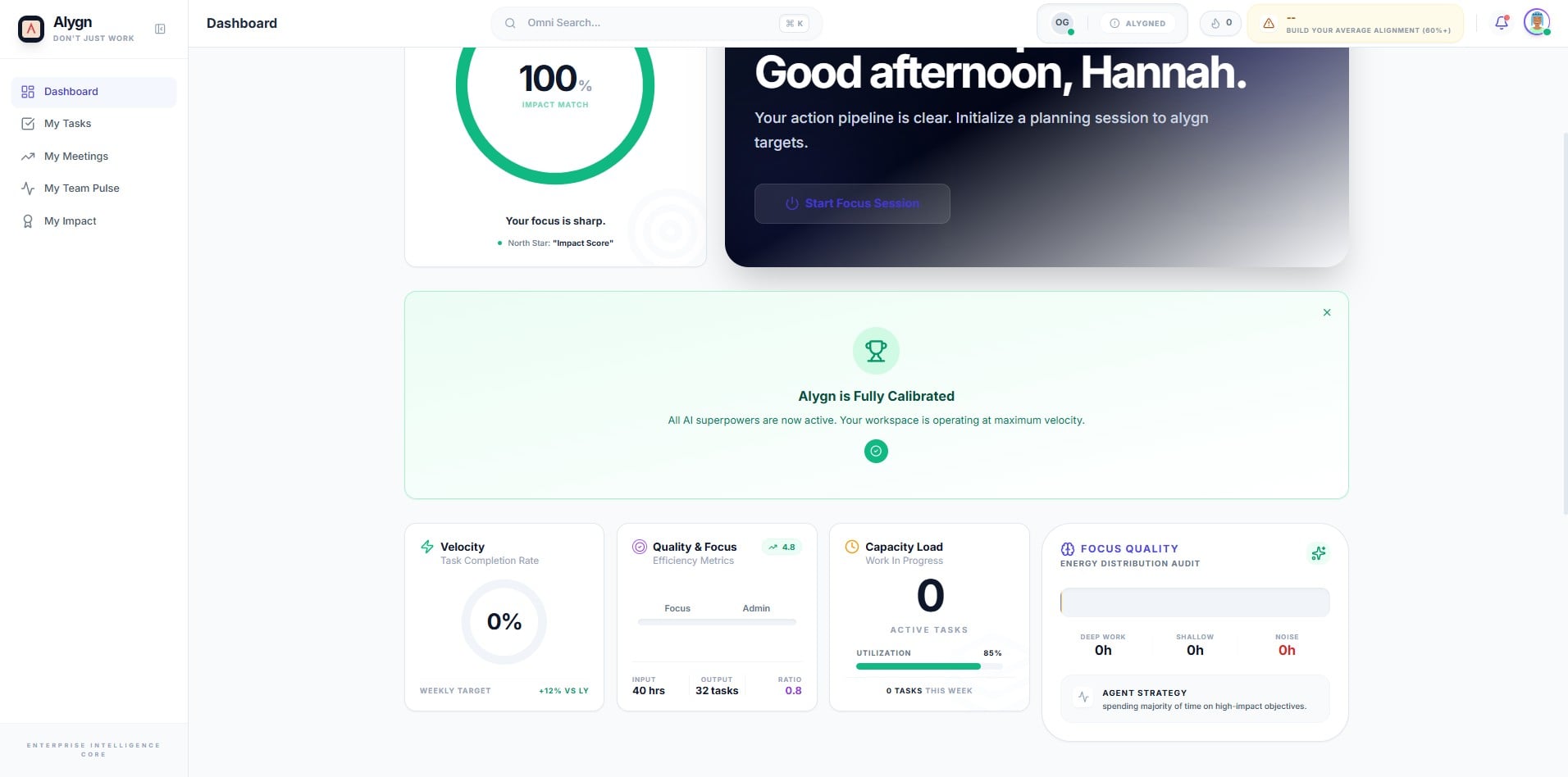
Open your browser and navigate to https://getalygn.com/app to access the Alygn platform. This is the main application dashboard where you will manage and review your assignments.
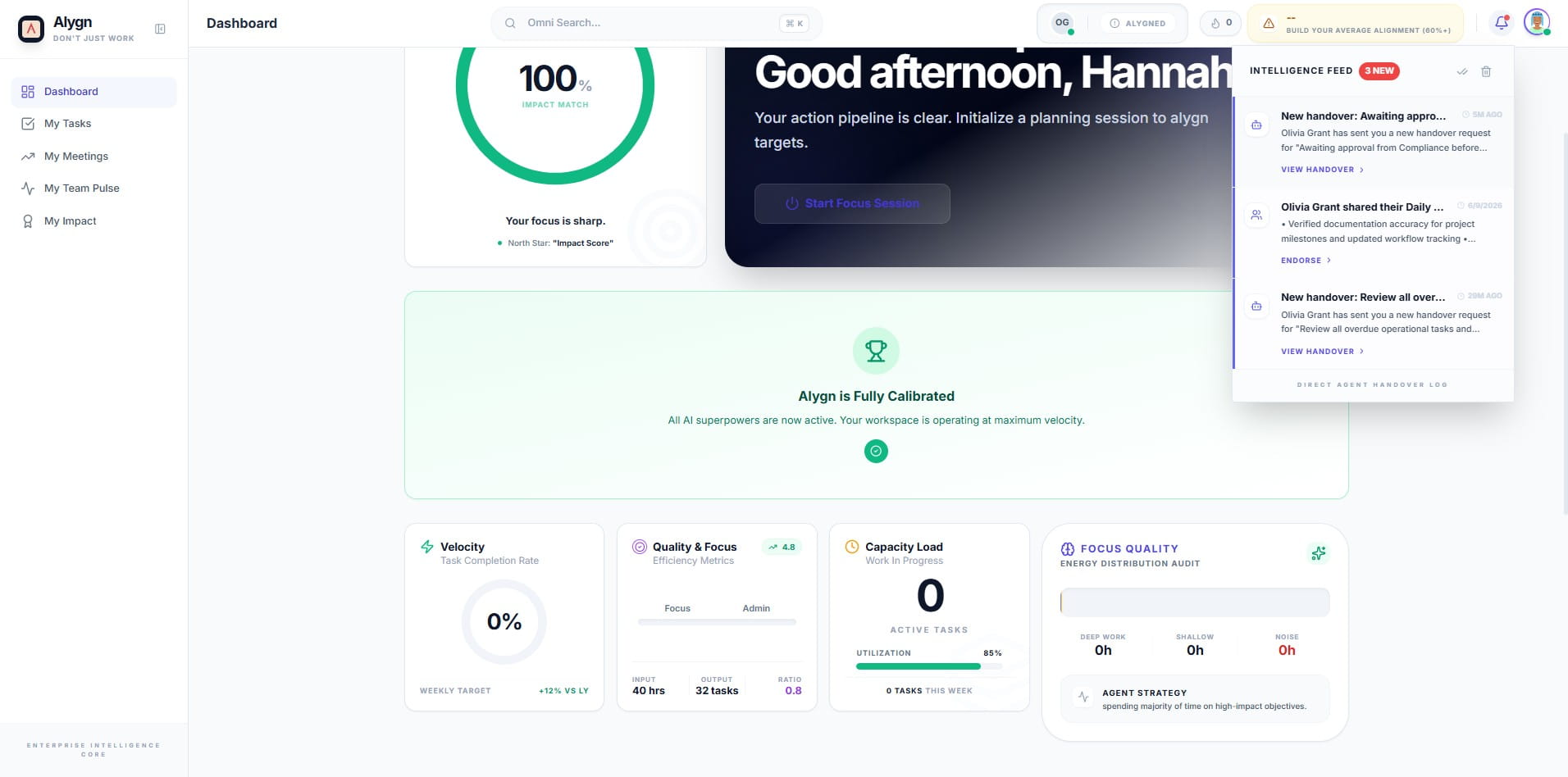
Click the notification icon located in the top-right corner of the Dashboard. This opens the Intelligence Feed panel, which displays incoming handover requests and other important updates assigned to you.
In the Intelligence Feed panel, locate and click on the notification that reads "Olivia Grant has sent you a new handover request f..." to open the full assignment details. This allows you to review the handover request before making a decision.
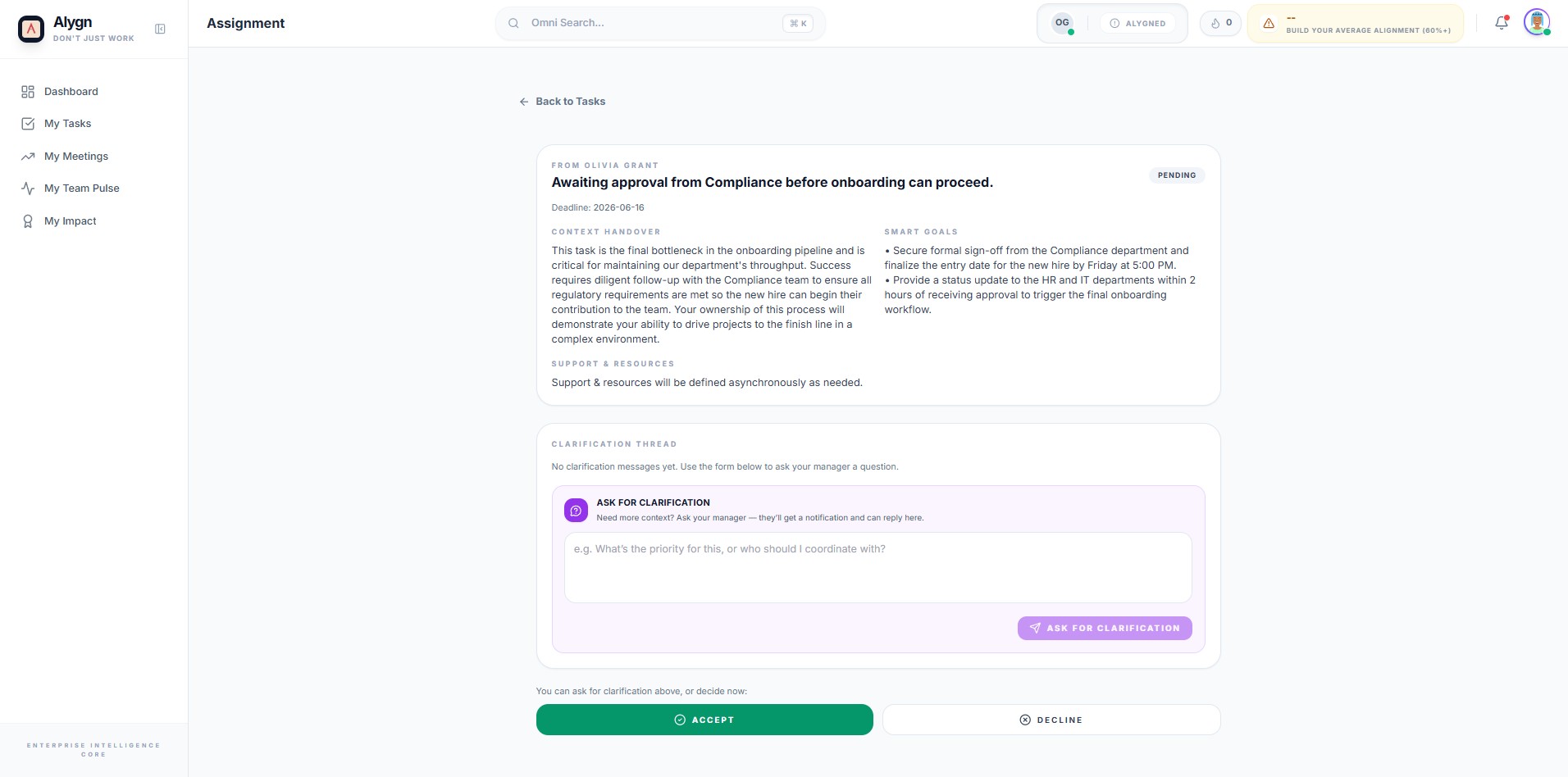
Click the icon to open the full assignment detail view. Here you can review the complete handover context, smart goals, deadlines, and any clarification threads before taking action. Use the "ASK FOR CLARIFICATION" field if you have any questions for your manager prior to accepting.
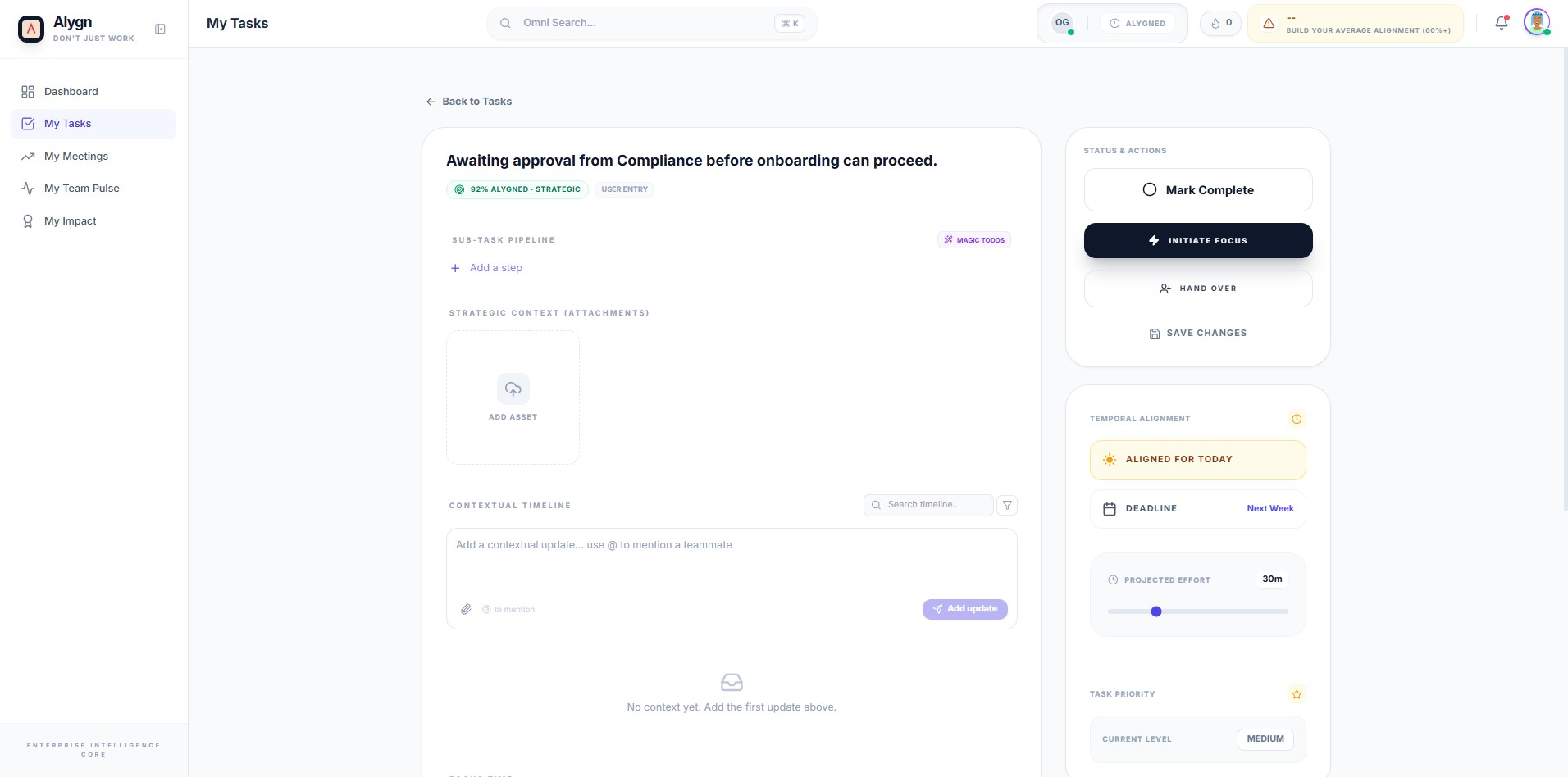
You have successfully accepted the assignment. The task now appears in your My Tasks view and is ready for action. From here, you can use "INITIATE FOCUS" to begin working on the task, "HAND OVER" to delegate it, or "SAVE CHANGES" to update any task details.